
Web Panel
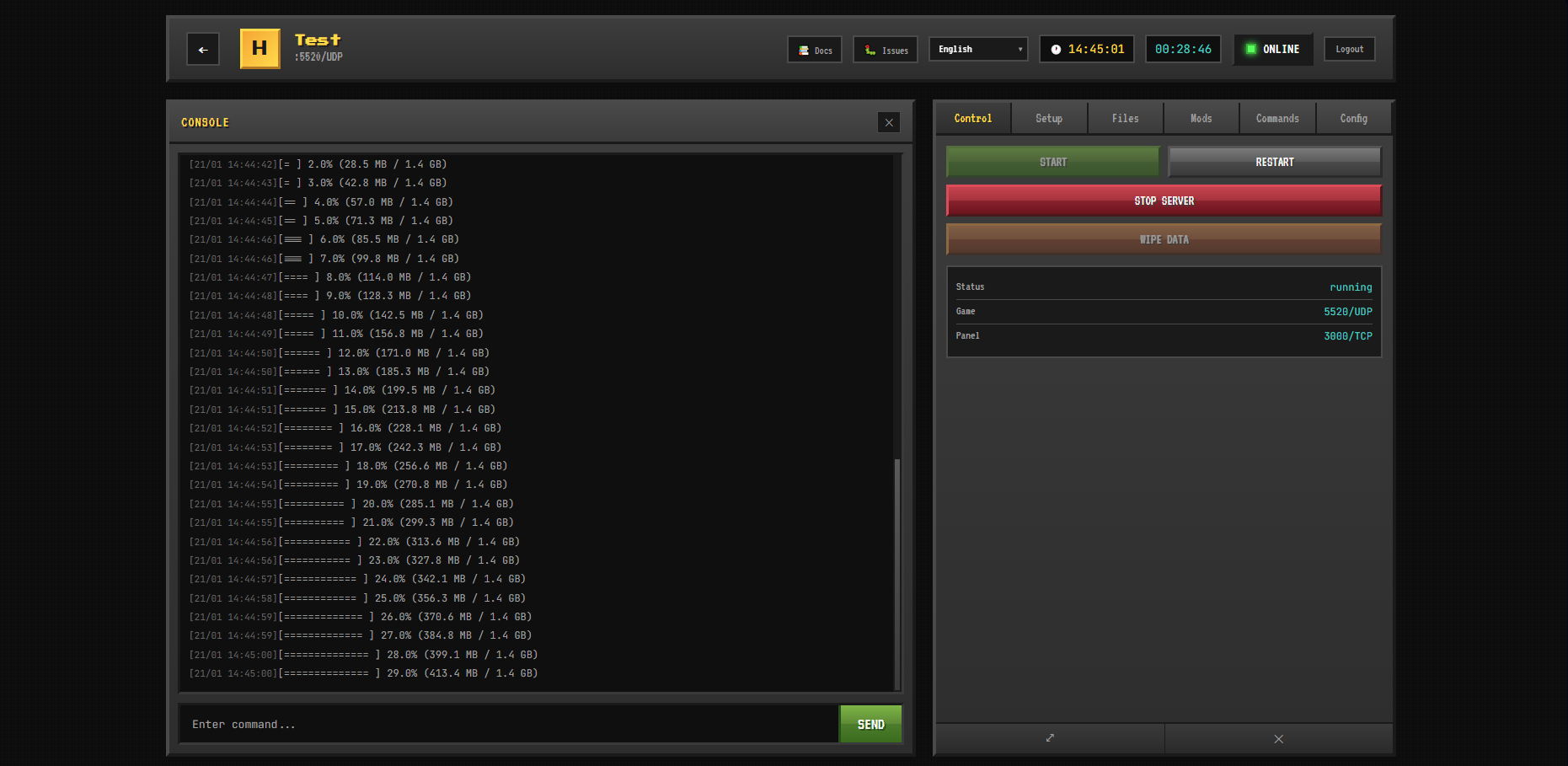
The web panel provides a complete interface to manage multiple Hytale servers from a single dashboard.
URLs and Navigation
Each server has its own URL for direct access:
/                     → Dashboard (list all servers)
/server/{server-id}   → Specific server management
Features:
- Bookmarkable URLs - Save links to specific servers
- Browser navigation - Back/Forward buttons work correctly
- Direct access - Share server URLs with team members
Creating a Server
- Click "Create Server" button
- Fill in the configuration:
- Server Name - A friendly name for your server
- Port - UDP port (auto-assigned if not specified)
- Min RAM / Max RAM - Java heap size (e.g., 4G, 8G)
- Linux Native - Enable for Linux hosts, disable for CasaOS/Windows
- Click "Create"
The server is created with its own:
- Docker container
- Data directory
- Configuration files
Server Management
After entering a server, you have access to several tabs:
Console
- Real-time server logs via WebSocket
- Color-coded output for different log levels
- Auto-scroll with pause option
- Command input to send commands to the server
TIP
Commands are disabled when the server is offline.
Setup Tab
Manage game file downloads, updates, and authentication:
- Download Status - Shows if game files are present
- Download Button - Downloads HytaleServer.jar and Assets.zip (~2GB)
- Update Tracking - Shows days since last update
- Check Updates - Re-download server files to get latest version
- Authentication - Device OAuth flow for Hytale authentication
Files Tab
Full file manager for the server's data directory. The file browser is always available, even when the server is stopped.
- Browse - Navigate folders
- Upload - Drag & drop or click to upload files (max 500MB)
- Edit - Inline text editor for configs (.json, .yaml, .properties, etc.)
- Delete - Remove files and folders
- Download - Download files
- Create - Create new directories
- Copy/Rename - Manage file organization
Mods Tab
Manage server mods with Modtale and CurseForge integration:
- Browse - Search mod catalogs (toggle between Modtale/CurseForge)
- Install - One-click mod installation
- Installed - View and manage installed mods
- Enable/Disable - Toggle mods without removing
- Updates - Check for mod updates from both providers
Provider status indicators:
- 🟢 Green = API working
- 🔴 Red = Invalid key
- ⚫ Gray = Not configured
See Mods Guide for setup instructions.
Commands Tab
Quick reference and buttons for common server commands:
/help              - Show all commands
/list              - List connected players
/auth login device - Start OAuth authentication
/auth status       - Check auth status
/stop              - Stop the server
Control Tab
Server lifecycle management:
| Button | Action |
|---|---|
| START | Start the server container |
| RESTART | Restart the server |
| STOP | Gracefully stop the server |
| WIPE DATA | Delete all server data (requires confirmation) |
Config Tab
Edit server configuration without touching YAML files:
| Setting | Description |
|---|---|
| Port | UDP game port (1024-65535) |
| Min RAM | Minimum Java heap (e.g., 2G, 4G) |
| Max RAM | Maximum Java heap (e.g., 4G, 8G) |
| Bind Address | Network interface (default: 0.0.0.0) |
| Extra Arguments | Additional server args (e.g., --world-seed 123) |
| Auto-download | Enable automatic game file download |
| G1GC | Use G1 garbage collector (recommended) |
| Linux Native | Mount machine-id volumes (Linux only) |
WARNING
Configuration can only be edited when the server is stopped. Restart the server to apply changes.
Backups Tab (v1.4.0+)
Manage server backups with automatic scheduling:
Manual Backups:
- Create Backup - Create an immediate backup (ZIP format)
- Restore - Restore server data from a backup (server must be stopped)
- Delete - Remove old backups
Automatic Backup Settings:
| Setting | Description |
|---|---|
| Automatic Backups | Enable/disable scheduled backups |
| Backup on Start | Create backup when server starts |
| Interval | Minutes between backups (0 = disabled) |
| Max Backups | Maximum backups to keep (0 = unlimited) |
| Max Age | Delete backups older than X days (0 = unlimited) |
Backups include:
universe/- World dataconfig/- Configuration filesmods/- Server modslogs/- Server logs- Root config files (.json, .yaml, .properties)
TIP
Backups are stored in data/servers/{server-id}/backups/ as ZIP files.
Authentication
The panel uses JWT (JSON Web Tokens) for authentication.
- Tokens expire after 24 hours
- Stored in browser localStorage
Changing Credentials
Edit your .env file:
PANEL_USER=your_username
PANEL_PASS=your_secure_password
Then restart the panel:
docker compose restartMulti-language Support
The panel supports multiple languages:
- 🇺🇸 English
- 🇪🇸 Spanish
- 🇺🇦 Ukrainian
Language is auto-detected from your browser settings.
Data Structure
Each server's data is stored independently:
data/panel/
├── servers.json          # Server registry and configs
└── servers/
    └── {server-id}/
        ├── docker-compose.yml  # Auto-generated
        └── server/
            ├── HytaleServer.jar
            ├── Assets.zip
            ├── universe/       # World data
            ├── mods/           # Server mods
            └── logs/           # Server logs
Keyboard Shortcuts
| Shortcut | Action |
|---|---|
Enter | Send command |
↑ / ↓ | Navigate command history |
Security Considerations
DANGER
Never expose the panel to the internet without proper security:
- Use a reverse proxy (nginx, Traefik) with HTTPS
- Enable firewall rules to restrict access
- Use strong passwords
- Consider VPN for remote access
Example: Nginx Reverse Proxy
server {
    listen 443 ssl;
    server_name hytale.yourdomain.com;

    ssl_certificate /path/to/cert.pem;
    ssl_certificate_key /path/to/key.pem;

    location / {
        proxy_pass http://localhost:3000;
        proxy_http_version 1.1;
        proxy_set_header Upgrade $http_upgrade;
        proxy_set_header Connection "upgrade";
        proxy_set_header Host $host;
    }
}
Troubleshooting
"No space left on device" on Windows/Docker Desktop
This is a known Docker Desktop bug. Fix:
- Run
wsl --shutdownin PowerShell - Restart Docker Desktop
- Try again
Server won't start
Check the server logs for errors. Common issues:
- Port already in use - change the port in Config tab
- Missing game files - use Setup tab to download
- Insufficient RAM - increase Max RAM in Config tab
Files tab shows empty
Check that HOST_DATA_PATH is correctly configured in your environment. The path must be an absolute path on the host machine.